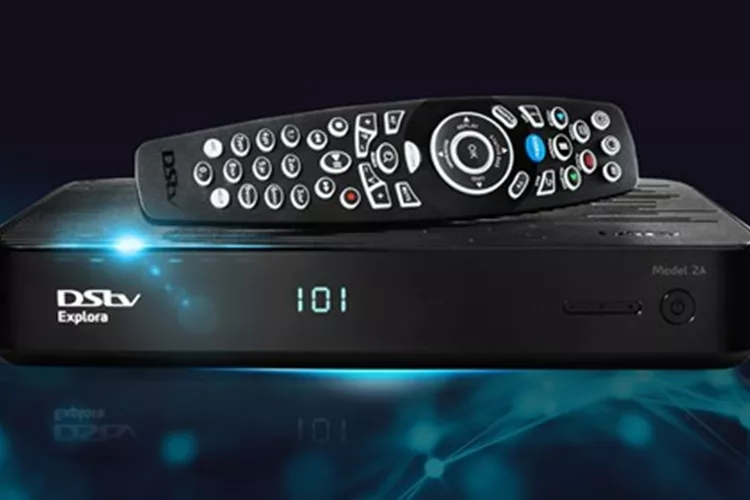
Your DStv Explora decoder is designed to deliver seamless entertainment, but like any electronic device, it can occasionally experience glitches such as freezing screens, missing channels, or slow response times. Fortunately, a quick reboot can often fix these minor issues without deleting your recordings or personal settings.
Here’s a complete guide on how to properly reboot your DStv Explora and restore smooth performance.
1. Reboot Using the Power Button (Soft Reset)
The simplest way to restart your decoder is by using the physical power button:
- Press the power button on the front of the Explora to switch it off.
- Wait for about 10–15 seconds.
- Press the button again to power it back on.
This type of soft reboot usually clears up small issues like lagging or freezing.
If the decoder fails to respond, try a full reboot instead.
2. Reboot by Unplugging the Decoder (Full Reset)
For stubborn errors that a soft reset cannot fix, perform a complete reboot:
- Switch off the decoder and unplug it from the wall socket.
- Wait at least 30 seconds to 1 minute to allow the system to discharge completely.
- Plug it back in, then press the power button to turn it on.
This method refreshes the decoder’s internal hardware and often resolves deeper system glitches.
3. Reboot with the Remote Control (Menu Option)
If your decoder is slow but still allows navigation, you can reboot directly through the menu:
- Press the blue DStv button on your remote.
- Navigate to Settings > System Settings.
- Select Reboot Decoder and confirm the action.
This is a convenient option when the decoder responds sluggishly but is not completely frozen.
4. Check for Software Updates
Sometimes, performance issues are linked to outdated software. Rebooting alone may not be enough if an update is required.
- Go to Settings > Information Central to check your software version.
- If an update is available, follow the on-screen prompts to install it.
- After updating, your decoder will automatically reboot.
Regular updates ensure your Explora runs with the latest features, stability fixes, and performance improvements, reducing the need for frequent restarts.
5. When to Contact DStv Support
If rebooting and updating do not solve the problem, the issue might be more serious.
- Contact DStv Customer Care through their website or helpline.
- Provide details of the problem and the troubleshooting steps you’ve tried.
- They may guide you through a factory reset or recommend a technician visit if hardware servicing is required.
Extra Tips for Smooth Performance
- Restart your decoder periodically to prevent lag.
- Ensure your decoder is well-ventilated to avoid overheating.
- Regularly check cables and connections to rule out signal issues.
READ MORE: How to Safely Reboot Your MacBook: A Complete Step-by-Step Guide