If you want to improve laptop graphics, you do not always need to replace your computer immediately. Several adjustments to Windows, display settings, graphics drivers, cooling and application preferences can help your laptop deliver a better visual experience. Depending on your hardware, these changes may produce smoother gameplay, clearer images, faster applications and more consistent performance.
Graphics performance matters whenever you use a laptop for gaming, photo editing, video production, 3D applications or high-resolution media. However, the results you can achieve depend on the processor, graphics processing unit (GPU), RAM, storage and display fitted to your machine. Therefore, the best approach is to optimize the hardware you already have before considering an expensive upgrade.
Fortunately, many useful improvements are straightforward. Updating the graphics driver, selecting the correct GPU, changing Windows power settings and reducing unnecessary background activity can free resources for demanding applications. At the same time, keeping the laptop cool can help prevent performance reductions caused by excessive heat.
Update Your Graphics Driver
One of the first steps to improve laptop graphics is checking whether your graphics driver is current. A graphics driver acts as a communication layer between Windows, applications and the GPU. When the driver becomes outdated, newer games and creative applications may experience compatibility issues or reduced stability.
Windows Update can provide available driver updates. However, laptops with dedicated NVIDIA, AMD or Intel graphics may also benefit from drivers supplied through the relevant manufacturer’s official software or support page.
After installing a major graphics driver update, restart the laptop. This gives Windows and the graphics subsystem an opportunity to load the new software correctly.
Switch Windows to a Performance-Oriented Power Mode
Windows includes power-management options that influence how aggressively the laptop uses its processor and other components. When you are connected to mains power and performing demanding tasks, a performance-focused setting may help the system maintain higher performance.
On supported versions of Windows 11, open Settings > System > Power & battery and review the available power mode options. Selecting a performance-oriented mode can be useful for gaming, rendering and other graphics-intensive workloads.
However, there is a trade-off. Higher performance can increase electricity consumption, heat output and fan activity. For everyday browsing or document work, a balanced setting may therefore be more appropriate.
Select the High-Performance GPU
Many modern laptops combine integrated graphics with a separate dedicated GPU. The integrated processor can handle everyday tasks efficiently, while the dedicated graphics processor can provide substantially more resources for demanding applications.
Windows allows users to assign individual applications to a preferred graphics processor. Go to Settings > System > Display > Graphics, select the application and open its options. If your laptop provides the appropriate hardware, choose the High performance option.
This setting can be particularly useful when a game or creative application is unexpectedly running on integrated graphics.
After changing the preference, close and reopen the application so that the new graphics selection takes effect.
Choose the Correct Screen Resolution
Display resolution affects both image quality and graphics workload. Your laptop’s recommended resolution generally provides the sharpest appearance because it matches the display’s native pixel structure.
For normal browsing, office work and media consumption, using the recommended resolution is usually preferable. However, demanding games can benefit from a lower resolution when the GPU cannot maintain an acceptable frame rate.
Rather than dropping the resolution dramatically, try reducing it gradually and compare the result. This allows you to balance image sharpness against performance.
Increase the Display Refresh Rate
A higher refresh rate can make movement, scrolling and supported games appear smoother. If your laptop has a 120Hz, 144Hz or higher display, check whether Windows is using the appropriate setting.
Open Settings > System > Display > Advanced display and review the available refresh rates.
Keep in mind that a higher refresh rate does not automatically make the GPU produce more frames. The graphics processor and application must generate enough frames to take advantage of the display’s capabilities.
Optimize Game Graphics Settings
If gaming is your primary goal, changing individual graphics options can often provide better results than simply selecting a preset.
Start by identifying settings that consume significant GPU resources. Shadows, reflections, volumetric effects, anti-aliasing and certain lighting effects can have a substantial impact on performance.
You can reduce demanding options while keeping textures and other settings at a level that maintains good visual quality. Make one change at a time and test the game after each adjustment.
This method makes it easier to identify which setting provides the biggest performance improvement.
Close Unnecessary Background Applications
Background applications compete for processor power, RAM and other system resources. Consequently, reducing unnecessary activity can help a graphics-intensive application receive more available resources.
Open Task Manager and check applications that are consuming significant CPU, memory or disk resources. Close programs that you do not need while gaming or working with demanding graphics software.
Browser tabs can also consume considerable memory, particularly when several media-rich pages remain open. Closing unnecessary tabs can therefore help on laptops with limited RAM.
You can also review startup applications and disable programs that do not need to launch automatically with Windows.
Keep the Laptop Cool
Temperature can have a major effect on sustained laptop performance. When internal components become too hot, the system may automatically reduce operating speeds to control heat.
To help prevent this, place the laptop on a hard, flat surface that allows air to circulate around its ventilation openings. Avoid blocking the vents with blankets, cushions or other soft materials.
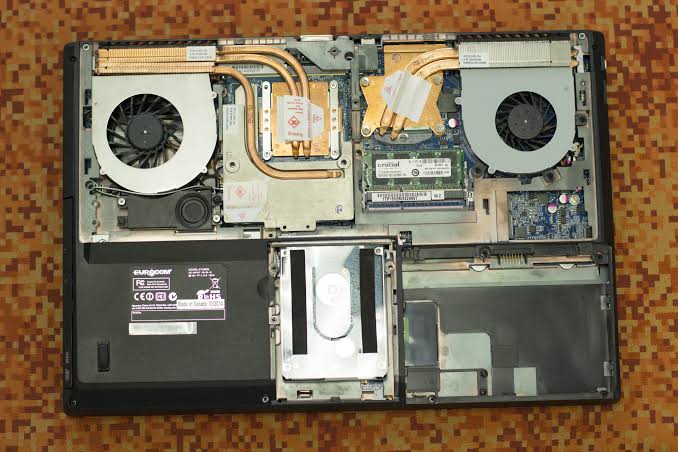
Dust accumulation can also restrict airflow. If the laptop is designed for user maintenance, carefully cleaning accessible vents can help improve ventilation. A cooling pad may provide additional airflow for some laptops, although its effectiveness varies by design.
Monitoring temperatures during long gaming or rendering sessions can also help identify thermal limitations.
Free Up Storage Space
A nearly full storage drive can contribute to broader system performance problems. Windows needs working space for temporary files, updates, caches and other operations.
Review your storage through Windows Settings and remove files you no longer need. Storage Sense can automate some cleanup tasks, while uninstalling unused applications can recover additional space.
Keeping reasonable free space on the system drive also makes routine maintenance easier and can reduce storage-related slowdowns.
Upgrade RAM When the Laptop Supports It
Insufficient RAM can limit overall system responsiveness, especially when running games, editing software and multiple applications simultaneously.
If your laptop supports memory upgrades, increasing RAM may improve multitasking and reduce situations where Windows relies heavily on slower storage for temporary memory.
However, additional RAM does not transform a low-powered GPU into a high-end graphics processor. Before purchasing memory, check your laptop’s maximum supported capacity, memory type and available slots.
Consider an SSD Upgrade
Replacing an older mechanical hard drive with a compatible solid-state drive can make a noticeable difference to general responsiveness. Windows can start faster, applications can open more quickly and games can load in less time.
An SSD does not directly increase the GPU’s processing capability. Nevertheless, faster storage can make the entire computing experience feel more responsive.
Before purchasing an SSD, verify the laptop’s supported interface, physical format and storage limitations. Always back up important files before performing hardware changes.
Use HDR When Your Display Supports It
High Dynamic Range, commonly known as HDR, can improve supported images and video by providing a wider range of brightness and color characteristics.
If your laptop has an HDR-compatible screen and you are viewing compatible content, Windows provides settings for enabling the feature.
HDR is not beneficial in every situation, however. It can change how certain content appears and may increase power consumption on some laptops. Therefore, compare the results with HDR enabled and disabled to determine which setting suits your usage.
Adjust Color and Display Settings
Windows provides several display controls that can influence the appearance of images and video. Brightness, color profiles, Night light and HDR can all change how content looks on screen.
For everyday use, adjust brightness and color according to the environment. For photography, design or video editing, color accuracy becomes more important. In those cases, using an appropriate color profile and calibrating the display can produce more consistent results.
Keep in mind that software calibration cannot compensate for every limitation of a low-quality or poorly calibrated display.
Keep Windows Updated
Windows updates can include security improvements, bug fixes, compatibility changes and driver-related updates. Keeping the operating system current can therefore contribute to a more stable graphics environment.
Open Settings > Windows Update and check for available updates. Where appropriate, review optional updates as well, particularly when troubleshooting graphics compatibility.
However, it is sensible to create backups before major system changes, especially when the laptop is used for important work.
Reduce Visual Effects When Performance Matters
Windows includes animations, transparency effects and other visual features that consume system resources. Their impact is usually modest on modern computers, but reducing unnecessary effects can help older or lower-powered laptops.
Open Windows performance and visual-effect settings and consider disabling features you do not need. This can make the operating system feel more responsive, particularly when the laptop has limited hardware resources.
For gaming, however, application-specific graphics settings usually have a much larger effect than Windows interface animations.
Check for Thermal or Hardware Limitations
Sometimes poor graphics performance is not caused by incorrect settings. A laptop may simply have hardware limitations that software adjustments cannot overcome.
An older GPU, limited RAM, weak processor or restricted cooling system can prevent demanding games and professional applications from running smoothly. In addition, many laptops use GPUs that are permanently attached to the motherboard, making a graphics-card upgrade impractical or impossible.
In such cases, optimizing the existing system remains useful, but expectations should remain realistic.
When a Hardware Upgrade Makes More Sense
If software optimization produces only a small improvement, examine the laptop’s hardware specifications. A RAM upgrade may help when memory is the bottleneck, while an SSD can improve storage-related responsiveness.
However, if the GPU itself is the limiting component, replacing the graphics processor may not be an option. For laptops with non-upgradable GPUs, moving to a newer computer with a stronger graphics processor may be the practical route for demanding gaming, 3D rendering or professional video work.
Before replacing a laptop, compare the requirements of the applications you use with the specifications of the current machine. This helps ensure that any replacement addresses the actual performance limitation rather than simply providing newer hardware.
Practical Steps to Improve Laptop Graphics
Start with the simplest changes before spending money on hardware. Update the graphics driver, install current Windows updates, select the appropriate GPU and review the power mode.
Next, optimize the application’s graphics settings, close unnecessary background programs and check the laptop’s temperature during demanding workloads. If performance remains limited, investigate RAM and storage upgrades.
Finally, determine whether the GPU itself is responsible for the limitation. This step is important because no software setting can turn an entry-level graphics processor into a high-performance GPU.
With the right combination of software optimization, display configuration, thermal management and suitable hardware upgrades, many laptops can deliver a noticeably better graphics experience without requiring an immediate replacement.