Downloading music from Spotify to your phone makes it easier to enjoy your favorite songs, playlists, and podcasts even when you’re not connected to the internet. Whether you’re traveling, saving data, or listening in areas with poor coverage, offline downloads offer convenience and uninterrupted playback. With Spotify Premium, you can easily save music directly to your device for offline listening.
Checking Your Spotify Subscription
Before you begin downloading, ensure that you have a Spotify Premium account. Offline downloads are not available to free users. To check your subscription, open the Spotify app, go to Settings, and view your plan details. If you’re on a free plan, upgrade to Premium to unlock offline download capabilities.
Connecting to a Stable Internet Source
To download music, you’ll need a stable internet connection, preferably Wi-Fi, to avoid consuming too much mobile data. Make sure your Wi-Fi is on and stable before you begin the download. A slow connection can cause interruptions during the download process, so it’s best to start when your phone has a strong signal and sufficient battery.
Selecting the Music You Want to Download
Open the Spotify app and browse through albums, playlists, or podcasts. Note that Spotify does not allow individual songs to be downloaded unless they’re part of a playlist. If you want to download a single track, you’ll need to add it to a custom playlist first. Once you have your selection, open the playlist, album, or podcast episode you want to save.
Tapping the Download Button
At the top of any album or playlist, you’ll see a “Download” button or toggle. Tap this button to start saving the content to your phone. The download icon will turn green once the process is complete. For podcast episodes, each episode has its own download button.
Waiting for the Download to Finish
Spotify will show a progress indicator next to each item being downloaded. Keep the app open until the download begins, then you can minimize it. The time it takes to download depends on the size of the playlist and your internet speed, but it typically takes a few seconds to several minutes.
Accessing Your Offline Music
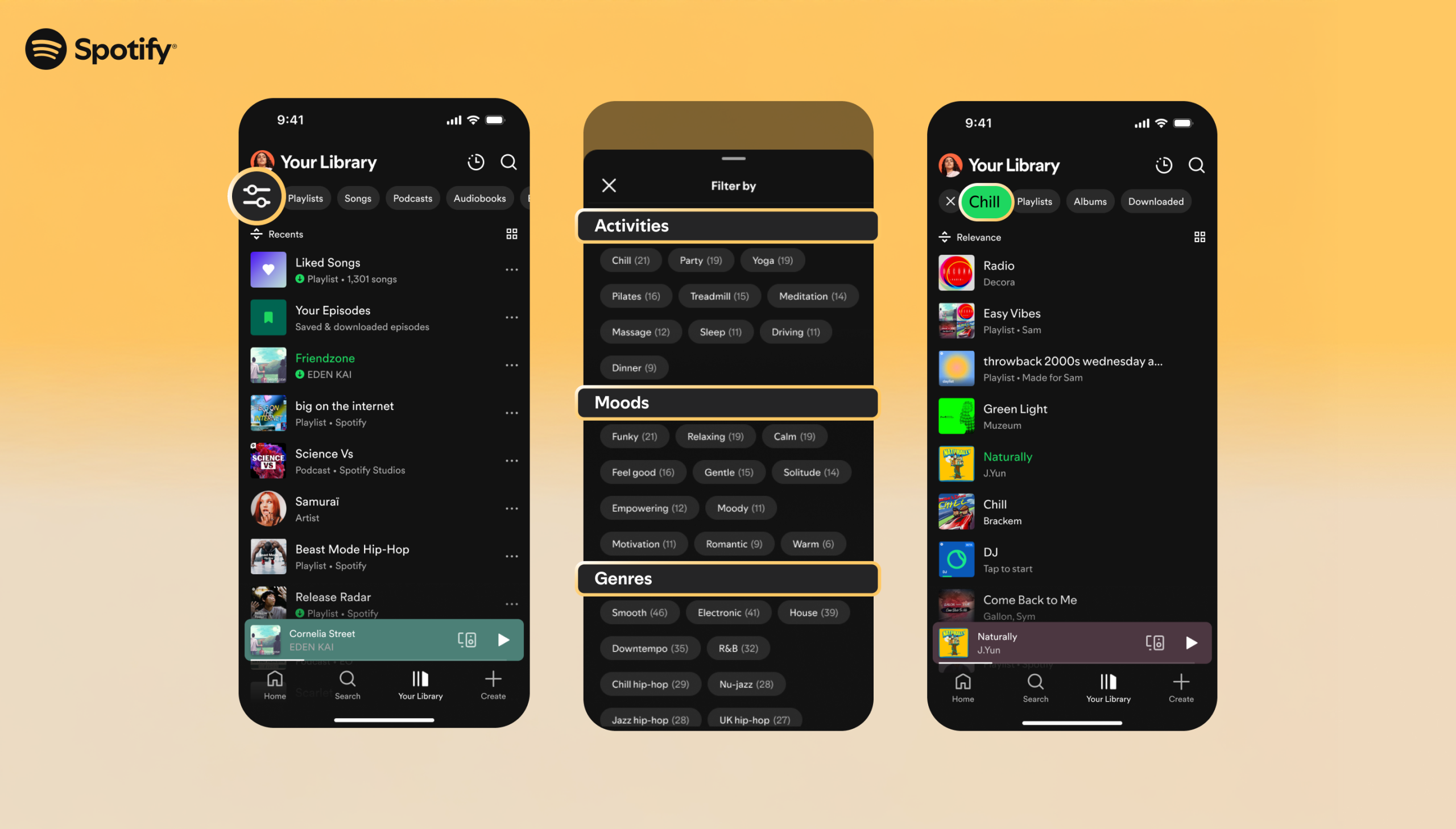
Once your music is downloaded, you can find it in the “Your Library” section under playlists, albums, or podcasts. When offline, Spotify will automatically play the saved versions of the songs. If you want to ensure the app stays in offline mode, go to Settings, select Playback, and activate Offline Mode.
Managing Storage Space
Downloaded music will use storage space on your phone. If your device runs low on space, you can free up room by removing older playlists that you no longer need. To do this, open the playlist, toggle off the download option, and Spotify will delete the local files while keeping the playlist online.
Keeping Downloads Active
To keep your downloaded music accessible, you need to go online at least once every 30 days. This is a security feature by Spotify. Simply open the app while connected to the internet to refresh your downloads and maintain access to your offline content.